
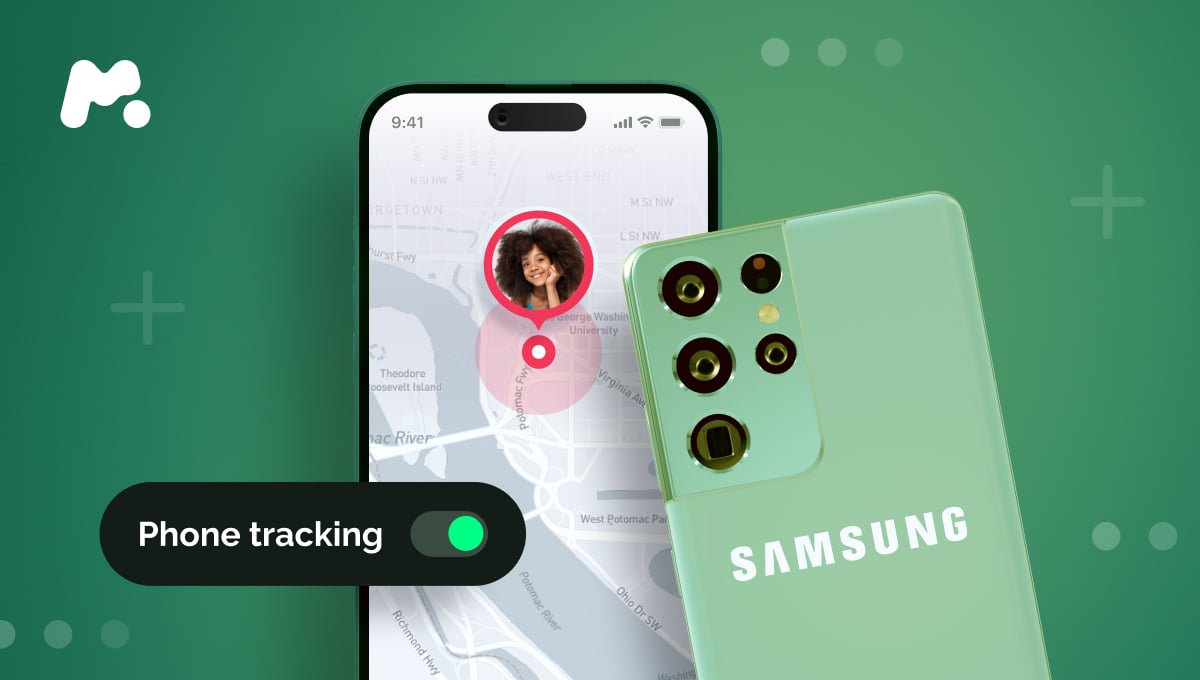
Most families don’t stick to just one phone brand. One parent uses an iPhone. A child has a Samsung. Sounds normal — until you want to check where your child is. That’s when things get tricky.
So the big question comes up fast: can an iPhone track a Samsung phone at all? And if it can, how reliable is it in real life?
We’ll break this down in plain language: what actually works, what doesn’t, and why a parental control app like mSpy can be a game-changer for children’s safety and parents’ peace of mind. Let’s get into it.
Table Of Contents
Cross-Device Tracking: Yes or No?

Yes, you can track a Samsung phone with an iPhone. But not with Apple’s built-in tools. Features like Find My only work within Apple’s own ecosystem. They don’t connect to Android devices at all, including Samsung phones. That’s not a glitch — it’s simply how Apple and Android are designed to operate separately.
So if you’re asking about default settings, the answer is no. There’s no direct option built into iOS. To make it work, you have to rely on third-party apps or Google-based tools that function across platforms. And those are the options we’ll break down next.
Method 1: mSpy

mSpy is a parental control app designed for parents who want to know their child is safe — both online and offline. It’s one of the most reliable apps for tracking a Samsung phone from an iPhone, or vice versa.
It doesn’t matter if your family mixes devices. iPhone, Samsung, Huawei, Xiaomi — even older Android models — mSpy works across all brands, which makes things much simpler.
When it comes to location tracking, here’s what you can do:
- See your child’s full movement history — where they were earlier today, a few minutes ago, or days back.
- Get clear details for each location, including the time, date, address, and exact spot on the map.
- Set up geofences for places that matter, like home, school, the gym, a friend’s place, or a grandparent’s house.
- Get alerts when your child enters or leaves those areas.
- Check which Wi-Fi network their phone is connected to and use Wi-Fi data to help pinpoint their location.
- See the phone’s battery level, which helps you know when tracking might stop if the battery runs low.
All of this works quietly in the background. Once mSpy is installed on your child’s phone, it doesn’t show up on the screen. No icons. No alerts. No pop-ups. It also doesn’t slow the phone down. From your child’s point of view, nothing looks different — while you stay a bit more aware of where they are.

Method 2: Find Hub
Find Hub, better known as Google Find My Device, is Google’s built-in solution for locating lost or misplaced Android phones.
With this tool, you can track Samsung from an iPhone through a browser. There’s no app to install on iOS. You simply sign in to Google’s Find My Device page using the same Google account that’s already on your child’s phone. That part is non-negotiable — if the phone isn’t linked to a Google account, tracking won’t work.
All the setup has to happen on the Samsung phone first. Here’s what you need to do in advance (before the phone might be lost):
- Location services need to be turned on.
- Find My Device must be enabled.
- The phone must be online.
Once everything is set up, you’ll be able to see where the phone is right now — or where it was last seen — along with the battery level. But that’s where it stops. There’s no location history, no alerts, and no ongoing monitoring. It’s helpful in a pinch if a phone goes missing, but it’s not built for keeping tabs on your child day to day.
Method 3: Google Maps

This method is a practical workaround if you need to find a Samsung phone from an iPhone. Google Maps comes preinstalled on most phones, regardless of brand, so there’s usually nothing extra to download. In urgent moments, that alone can be a big help.
But just like the previous option, this only works if you set it up ahead of time. Here’s what to do on your child’s Samsung phone:
- Open Google Maps.
- Tap the account icon in the top-right corner.
- Go to Location sharing and choose Share location.
- When prompted, don’t leave it at For 1 hour. Select Until you turn this off instead.
- At the bottom, pick yourself from the contact list and send the link.
- Save that link somewhere so you can open it whenever you need.
After that, you’ll have a live link to your child’s location. Tap it from your iPhone, and you’ll see where they are in real time, along with the phone’s current battery level.
For basic, real-time tracking, this works well. But if you want more context — like where they’ve been or automatic alerts — this method won’t cover that. In those cases, a parental monitoring app makes more sense.
Which Method to Choose?

Each method has its place. Some work fine in emergencies. Others are okay if you just need a quick location check. But if you’re looking for something built specifically for parents, a dedicated monitoring app makes the most sense.
Why? Because location is only part of the picture. With a parental control app, you’re not just seeing where your child is — you’re also able to understand what’s happening on their phone overall.
For example, mSpy lets you:
- See private chats across social networks.
- Listen to the call activity.
- View conversations with AI tools like ChatGPT or Gemini.
- Check browser history, visited sites, and downloads.
- Block specific apps, sites, or Wi-Fi networks.
And that’s only part of what it can do. mSpy gives you full access to your child’s online world, so you can step in when something doesn’t feel right. Try the demo to see how mSpy works in real-life situations!