
În conformitate cu Common Sense Media, aproximativ 40% dintre copii au o tabletă până la vârsta de doi ani, iar aproape unul din patru deține deja un telefon personal până la vârsta de opt ani. Copilăria a devenit digitală. Vă place sau nu, aceasta este realitatea acum, iar lupta împotriva tehnologiei pur și simplu nu funcționează.
Dar atunci când un telefon începe să fure somnul, să afecteze concentrarea sau să înlocuiască conversațiile reale, este momentul să interveniți. O opțiune practică este să blocați telefonul copilului dvs. de la distanță.
În acest articol, veți afla cum să faceți acest lucru cu o aplicație de control parental precum mSpy sau cu instrumentele integrate ale Apple. Să trecem la subiect.
Cuprins
Soluția 1: mSpy
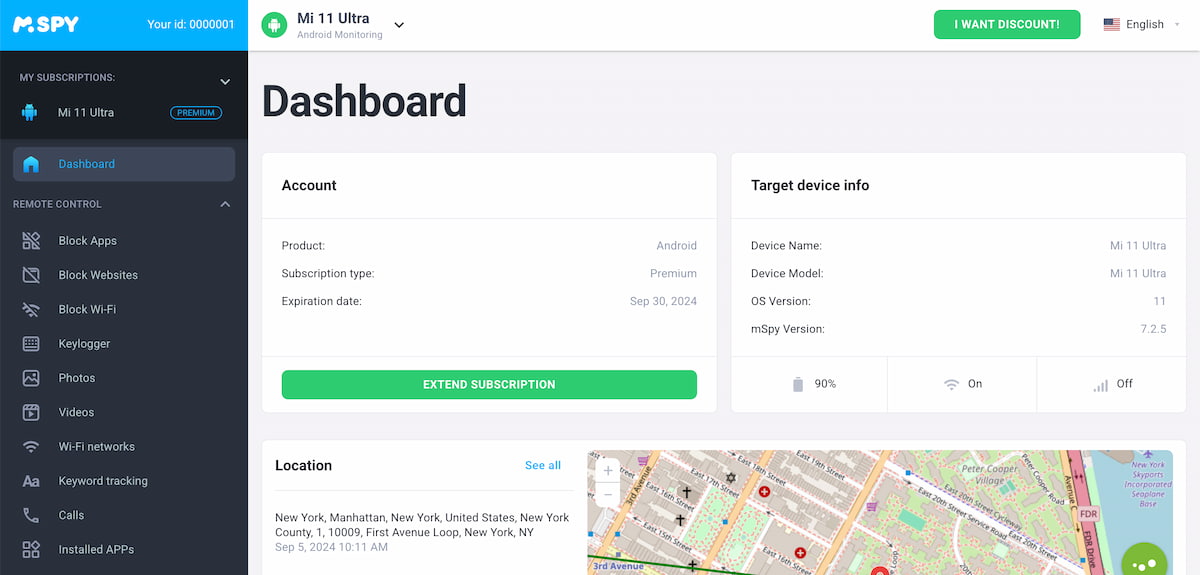 mSpy este o aplicație de monitorizare parentală care vă permite să vedeți ce se întâmplă pe telefonul copilului dvs. Unul dintre principalele puncte forte ale mSpy este capacitatea sa de control de la distanță. Deși nicio aplicație nu poate bloca complet iPhone-ul unui copil de la distanță, mSpy vă permite să blocați funcțiile sale principale. Și anume:
- Blocarea aplicațiilor: Puteți bloca anumite aplicații cu câteva atingeri. Social media, jocuri, aplicații de mesagerie - orice.
- Blocarea site-urilor web: De asemenea, puteți bloca site-uri web pe care ați prefera ca copilul dvs. să nu le viziteze. Odată ce un site este pe lista de blocări, acesta este pur și simplu interzis.
- Blocarea Wi-Fi: De asemenea, puteți bloca Wi-Fi, ceea ce împiedică funcționarea aplicațiilor online. Este o modalitate ușoară de a întrerupe orice activitate pe internet în timpul temelor, seara târziu sau ori de câte ori considerați că este necesar.
În acest fel, nu luați telefonul. Limitați doar părțile care cauzează probleme. Pentru că adevărata problemă nu sunt telefoanele în sine, ci modul în care sunt folosite. Aplicațiile precum mSpy te ajută să ghidezi această utilizare în loc să te lupți cu ea.

Soluția 2: Funcția Screen Time
 Funcția Screen Time încorporată de Apple este o opțiune simplă dacă doriți să reduceți utilizarea telefonului de către copilul dvs. Cu toate acestea, nu puteți opri telefonul copilului dvs. de la distanță. Aveți nevoie în continuare de telefon în mâinile dvs. pentru a configura totul.
Iată cum funcționează:
- Luați-le dispozitivul și deblocați-l.
- Deschis Setări.
- Robinet Timpul petrecut în fața ecranului.
- De aici, puteți seta orele de întrerupere, puteți limita durata de utilizare a aplicațiilor și puteți alege care aplicații sunt permise întotdeauna.
- Apoi, creați un Codul de acces Screen Time pe care numai tu le știi. În caz contrar, copiii vor găsi o modalitate de a o ocoli.
Țineți cont de faptul că limitele funcționează după un program. Odată ce sunt setate, acestea intră în vigoare automat. De aceea poate părea un pic rigid.
De exemplu, dacă copilul dvs. este în mijlocul unei discuții importante cu un prieten, Screen Time nu știe asta. Telefonul se blochează atunci când cronometrul se termină, ceea ce poate duce la frustrare sau la momente stânjenitoare.
Aplicațiile de control parental funcționează diferit. Acestea vă permit să vedeți ce se întâmplă în timp real și să interveniți atunci când este necesar. Puteți aștepta până se termină o conversație, apoi blocați aplicația. Cu Screen Time, ai încredere că ceasul va lua această decizie în locul tău.
Soluția 3: Găsiți iPhone-ul meu (dacă copilul dvs. și-a pierdut telefonul)
 Să ne uităm la momentul de care se teme orice părinte - copilul își pierde telefonul. În această situație, întrebarea “Cum pot bloca de la distanță iPhone-ul copilului meu?” are sens. Blocarea imediată a dispozitivului ajută la împiedicarea accesului străinilor la mesaje private, fotografii și chiar carduri de plată salvate.
Acesta este momentul în care funcția Find My de la Apple vine în ajutor. Dacă a fost activată înainte de dispariția telefonului, puteți bloca dispozitivul de oriunde și puteți păstra în siguranță datele copilului dvs. până când este găsit.
Iată ce trebuie să faceți:
- Du-te la iCloud.com/find din orice browser, sau deschideți Găsiți aplicația mea pe un alt dispozitiv Apple
- Conectați-vă folosind ID-ul Apple al copilului dvs.
- Selectați iPhone-ul lor din lista de dispozitive
- Porniți Modul pierdut
Modul pierdut blochează ecranul utilizând codul de acces existent al telefonului și vă permite să afișați un mesaj personalizat - ceva simplu, cum ar fi un număr de telefon sau “Acest telefon aparține unui copil. Vă rugăm să sunați.” Find My poate fi un adevărat salvator în astfel de momente.
De ce aplicația de control parental este cea mai bună soluție
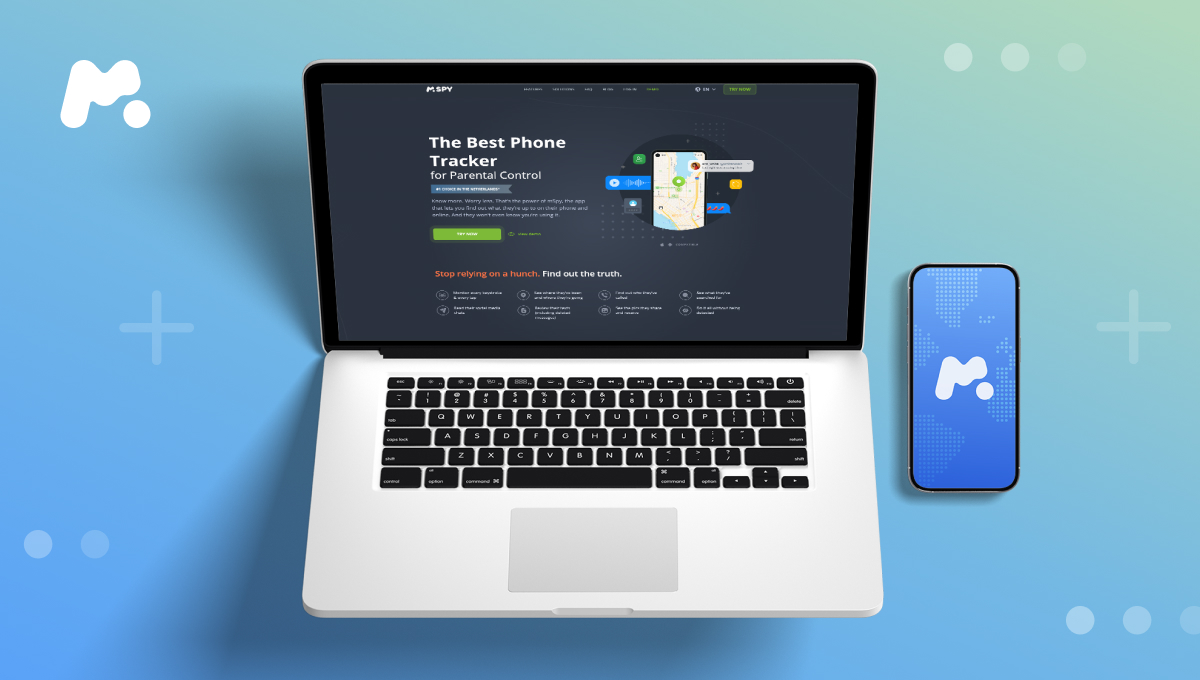 Instrumentele native precum Apple Screen Time sunt bune pentru controalele de bază. Puteți seta limite de timp și puteți bloca anumite aplicații. Dar cam atât. Nu vedeți cu adevărat ce se întâmplă pe telefonul lor - cu cine vorbește copilul dvs., ce caută sau dacă se întâmplă ceva riscant.
În loc să blocați pur și simplu un iPhone pentru copii, puteți fi informat cu privire la activitățile lor online, îi puteți proteja și puteți bloca exact ceea ce este dăunător. Aceasta este ideea din spatele unor instrumente precum mSpy.
Cu ajutorul acestuia, puteți:
- Citiți chat-uri private pe Instagram, Snapchat, Viber, WhatsApp și altele
- Ascultați înregistrările apelurilor și vedeți detaliile complete ale apelurilor
- Verificarea istoricului locației
- Vezi conversațiile cu ChatGPT sau Gemini
- Accesați fotografii, videoclipuri și fișiere stocate pe telefon
- Vedeți căutările Google, linkurile deschise și fișierele descărcate
Dar poate controlul parental să blocheze un telefon de la distanță? Nu chiar - nu în sens strict. Acestea blochează ceea ce contează cu adevărat.
Nu doriți ca copilul dvs. să discute pe chat cu străini? Blocați Snapchat. Nu vreți ca ei să folosească inteligența artificială? Block ChatGPT. Nu doriți acces la site-urile 18+? Blocați-le pe toate. Îi doriți offline pentru o perioadă? Blocați Wi-Fi.
Diferența esențială este că știți ce se întâmplă și acționați atunci când este necesar. Aceasta este ceea ce face ca această abordare să fie eficientă.